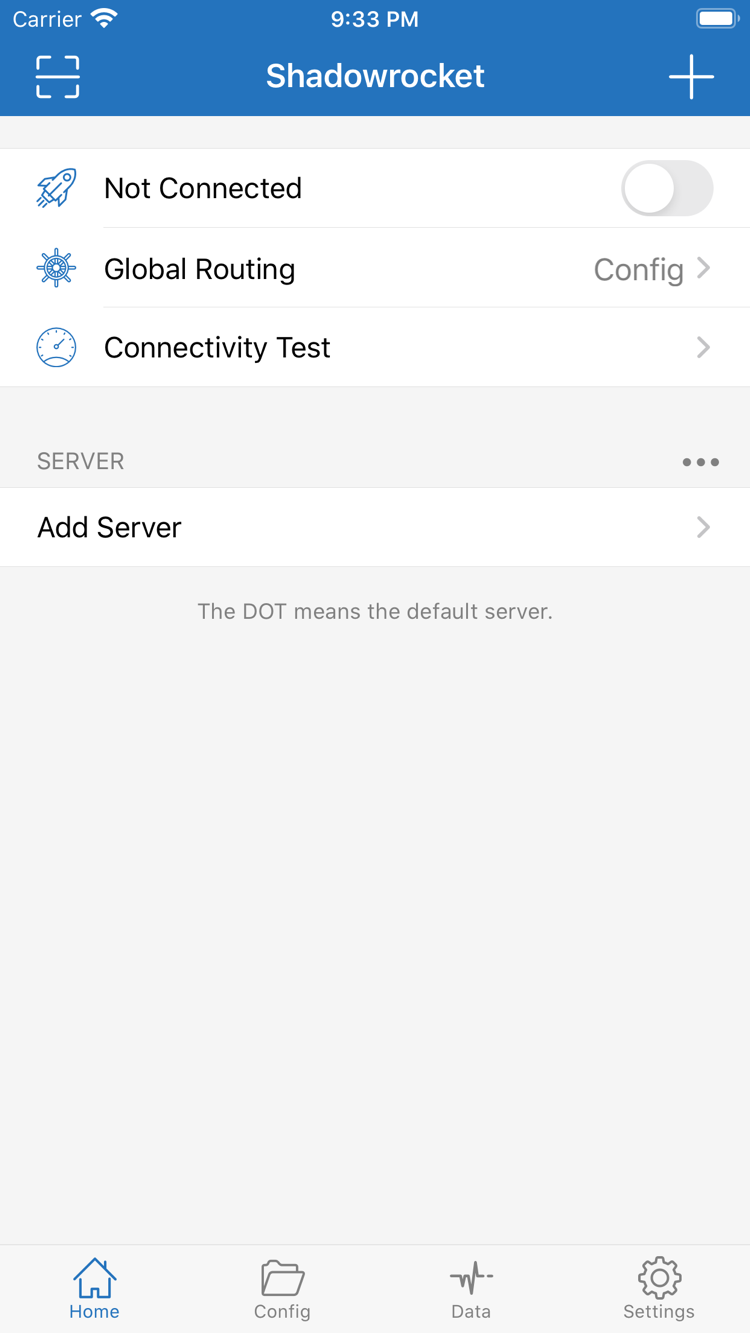
A rule-based proxy client for iPhone and iPad, available as a one-time purchase on the App Store. Start by importing an existing subscription, then check your configuration, choose a policy, and test the connection.
APP STORE/ONE-TIME PURCHASE/RULE-BASED ROUTING/CONFIG · PROXY · DIRECT
Understand first, then adjust
Shadowrocket Key Features
Server details, configuration rules, and connection policies each serve a different purpose. Adding a server prepares the connection parameters; Config determines how requests are routed; Global Routing determines which handling mode is active. Before making changes, identify which layer you are adjusting to avoid mistaking a server issue for a rules issue.
The index on the right organizes common features in the order you are likely to use them. Interface labels remain in English; rule snippets illustrate syntax and are not usable connection details. Before setup, have your own subscription or server details ready.
In Config, check which configuration is active, then set Global Routing to Config so requests are handled according to your rules. Rules are matched from top to bottom; put specific conditions first and use FINAL as the fallback at the end. PROXY sends a request to a proxy policy, DIRECT connects directly, and REJECT blocks a matching request. This example illustrates how domains map to policies; before using it, confirm that the policy names are valid and keep a copy of the original configuration so you can restore it if a rule matches unexpectedly.
Find On Demand in Settings and configure automatic connections using the network conditions available in the current interface. On Demand controls when a connection starts; it does not replace Rule's decision about where requests go. When setting it up for the first time, verify that a manual connection works, then add one easy-to-reproduce condition and check the result both when the condition is met and when it is not. If the connection starts again after you disconnect manually, first check whether On Demand is still active rather than repeatedly changing the server password. Available conditions depend on what the device displays.
Settings → On Demand
Global Routing → Config
Type: Match the Server Configuration
In Add Server, select the Type specified by your service provider. Shadowsocks, VMess, VLESS, Trojan, Hysteria2, and WireGuard use different fields; changing only the protocol name while keeping the other parameters is not enough. Match the address, port, authentication method, and any TLS or key details required by the protocol. After importing an existing share link, check that all fields are present. A protocol name alone says nothing about connection quality: a connection depends on the client parameters matching the server configuration and the network being able to reach it.
Add Server → Type
Host / Port
WireGuard: PrivateKey / PublicKey / Endpoint
Subscribe: Import an Existing Subscription
Get your subscription link from your service provider. In Add Server, choose Subscribe and enter the link. Save it, update the subscription, then return to Home to see the imported entries. Updating a subscription refreshes the server list; it does not switch the active Config or guarantee that every entry will connect. If an update fails, check that the link is complete and current and that the network can access it. Links may contain personal access credentials, so do not share them publicly. When reporting an issue, provide only the error details with credentials removed.
Add Server → Type → Subscribe
Home → SERVER
Config: Know the Difference Between Saving and Enabling
Config manages rules and related configuration data. Importing or saving a file does not make it the active configuration; after editing, check that it is enabled and that Global Routing is set to Config. When troubleshooting DNS or routing, keep a working copy, change one thing at a time, and retest the same destination. iCloud sync can help manage data across your own devices, but sync status is not connection status. After switching devices, check the file contents, selected server, and local authorization.
Config → General / Rule / Hosts
Global Routing → Config
Diagnostics: Separate Tests from Actual Requests
Connectivity Test in Home can help assess whether a server is reachable. Results depend on Test Method in Settings and current network conditions. Data can help you monitor traffic, but it is not a substitute for your service provider's usage records. If a connection fails, test the current network again, verify the server parameters, then use Diagnostics and logs to investigate. If the test responds but a webpage will not load, also check DNS, the matched rule, and the destination service. Before sharing logs, remove subscription links, authentication details, and private browsing records.
Home → Connectivity Test
Settings → Test Method / Diagnostics
Data
Global Routing:Config / Proxy / Direct
Config mode routes requests according to the rules in the active configuration. Proxy mode sends requests handled by the client to a proxy policy, while Direct mode uses a direct connection. Choosing a mode and choosing a server are separate actions; selecting a server does not mean all requests are going through it. For everyday rule-based routing, check Config first. To isolate the effect of rules, temporarily switch modes and compare the same destination, note the difference, then restore the original settings.
Changes in Data can offer clues, but they do not by themselves prove which route a request took. A more reliable check is to confirm the current mode, verify which Config is enabled, check the rule that matched the request, and then review the logs. Check DNS settings in the same order, rather than changing several parameters before identifying the source of the issue. See the Settings Reference for details.
Check by Device
Getting Shadowrocket on iPhone and iPad
Shadowrocket is available exclusively on the App Store. Check the product page, the Apple Account used for the purchase, and device compatibility before proceeding with installation and first-time setup. See the App Store listing for system requirements.
iPhone
Verify the app on the App Store, then purchase and install it. The first time you connect, the system may ask to add a VPN configuration. Make sure the prompt is from Shadowrocket, then follow the device instructions to approve it. System authorization enables a connection; it does not provide server details.
For your first session, import an existing server or subscription manually and confirm that its settings are saved. Then choose Global Routing and turn on the connection. If you still cannot reach a destination after granting authorization, there is no need to reinstall the app repeatedly; troubleshoot the network, server, and configuration in that order.
Use the same Apple Account you used to purchase Shadowrocket, then check your App Store purchase history. Previous purchases can usually be downloaded again; check the App Store listing for purchase eligibility and whether the purchase is universal. Verify the account first to avoid mistaking a purchase made with another account for a missing purchase.
The landscape layout and content arrangement may differ on iPad. Use interface labels such as Home, Config, and Settings to find your way around. Purchase history and configuration data are separate: after getting the app, check your own server details, active configuration, and local connection authorization.
Shadowrocket is also available on the App Store for Mac and Apple TV. Check the listing for compatibility, system requirements, and whether the purchase is universal.
This guide assumes you already have your own subscription or server details. Get a basic connection working first, then add rules or automatic connection conditions. This makes it easier to identify which step caused a problem.
Get a subscription link from your service provider, or gather the complete server parameters. In Add Server, select the appropriate Type: choose Subscribe for a subscription, or enter the fields for a single server using its actual protocol. After saving, return to Home and check whether the expected entry appears under SERVER. Seeing a name confirms the import completed, not that authentication or connectivity succeeded.
If no entry appears after importing, check the message shown when saving or updating, then make sure the link was copied in full. If an entry appears but the test fails, verify the Host, Port, authentication fields, and protocol options. Do not guess missing values.
02 / GLOBAL ROUTING
Choose a Mode and Check Config
Open Global Routing in Home and choose Config, Proxy, or Direct as needed. If you use rules, also confirm that the expected file is enabled in Config. A configuration file controls request routing; a subscription manages the server list. They have different update controls and take effect in different ways, so refreshing a subscription does not refresh your rules.
When getting started, keep the original working configuration and avoid adding custom rules in bulk. If you need to make a change, first specify which domain should use which policy, then add the narrowest rule needed and check its position in the list.
03 / CONNECTIVITY TEST
Turn On the Connection and Test an Actual Request
Select the server you want to use, turn on the connection switch at the top of Home, and follow the system prompt to authorize the VPN configuration. Then use Connectivity Test as a check and open a familiar destination to verify actual access. Connection status, test results, and webpage access are separate outcomes; check each one.
If the test responds but access fails, check DNS and the matched rule. If every entry fails, first check the device's basic network connection and time. Change one condition at a time and keep any error messages so you can compare them with the troubleshooting steps in the full guide.
Before You Buy
Verify the App and Understand the Purchase
Shadowrocket is a closed-source commercial app. This is the official website and manual; use the App Store product page for purchases, installation, and updates. To verify the app, check the developer, official icon, and app ID rather than relying on the name in search results alone.
DeveloperShadow Launch Technology Limited
App ID932747118
One-Time Purchase
App Purchase ≠ Service Plan
Purchasing Shadowrocket gives you a license to use the client; it does not include a server, subscription, or connection service. This site does not provide, sell, or recommend servers or subscriptions. Get any details you need to import from your own service provider. Check server availability, usage limits, and service validity with that provider as separate matters.
The client can save server details, read configurations, and establish connections, but the server address, port, authentication method, and protocol parameters must be valid. Even with the app purchased and installed, a connection cannot be made without these details. If a server stops working, purchasing the client again will not resolve a server-side issue.
Developer, Icon, and App ID
On the product page, first confirm the developer is Shadow Launch Technology Limited. Then compare the app icon with the official icon used on this site, and finally check for id932747118 in the product page URL. All three details should identify the same Shadowrocket app; do not rely on an abbreviation or a similar-looking icon alone.
Take extra care when opening the product page from search results. A similar app name does not mean the purchase history, features, or license are the same. Before paying, confirm the developer and app ID on the current page. Use the developer and app ID on the App Store listing to verify authenticity.
One-Time Purchase and Storefront Pricing
The reference price on the US storefront is $2.99 as a one-time purchase. Other storefronts display local currency; the App Store page shows the actual amount before payment. Buying the client and paying for an ongoing connection service are separate matters. The app price is not a subscription fee.
On iPhone and iPad, first check the purchase history for the same Apple Account. Whether the purchase is universal, which other devices are eligible, and any related purchase conditions are subject to the App Store listing. If configuration data is not yet on another device, that does not mean the app purchase failed: check purchase history and configuration data separately.
Storefront Availability and Account Region
Whether the product page is visible, which payment methods are available, and which currency is shown depend on the current App Store storefront and account. If search does not find the app, open the product page from this site's app verification page and check the message from the store. Distinguish storefront availability from device compatibility and account status.
See the App Store listing for system requirements. If a compatibility notice appears, check the requirements for your current device rather than inferring compatibility from whether the app installs on another device. Follow the purchase flow shown in the store; the result for one storefront does not necessarily apply to every account.
Restore Purchases, Updates, and Configuration Data
Before switching devices or reinstalling, keep your server details and a backup of your configuration. Then use the account you purchased with to find Shadowrocket in App Store purchase history. App updates are delivered through the App Store; check the store-related settings on your device to see whether automatic updates are enabled.
Getting the app again does not restore all configuration data. Even if you use iCloud sync, check the data on the new device, make sure the right Config is active and the server is available, then authorize the VPN configuration on that device. Check the App Store listing and your account for Family Sharing eligibility; do not assume every purchase is eligible.
After your first connection works, explore guides for specific questions. For rule changes, start with match order; when choosing from your existing servers, understand what the test measures; before using a second device, distinguish purchase restoration from configuration transfer.
Learn what PROXY, DIRECT, and REJECT do and how to order specific and general rules. Follow how the same request is handled under different rule orders to see why a new rule may not match, and keep a restorable copy of your configuration before making changes.
Covers how to choose among entries in an existing subscription. Distinguish test response time from actual loading speed and sustained connection stability. Learn why a lower latency number alone does not predict the overall experience and which conditions to keep consistent when retesting.
Covers the iPad workflow from three angles: the purchasing account, App Store purchase history, and finding controls in the interface. After transferring configuration, check the active file and selected server. If the layout changes in landscape, use the interface labels Home, Config, and Settings to find the right controls.